Customers
Everyone you've captured through your QR campaigns and forms, plus the files they've uploaded.
Every form submission adds to your customer list — everyone you've captured across your campaigns, in one place. You'll find it under Audience, which has two pages: Customers and Form Uploads.
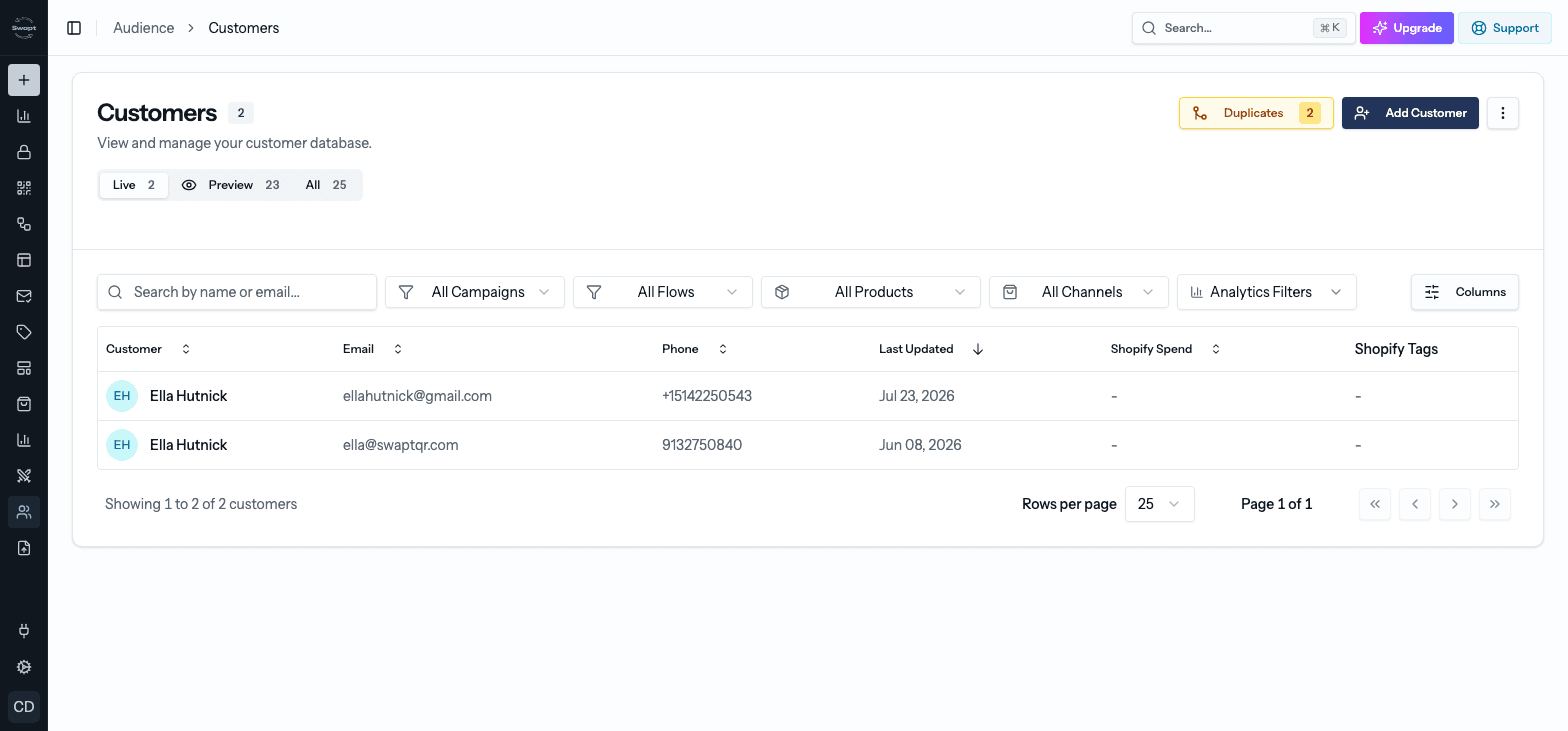
Customers
The Customers page lists everyone you've captured, with a total count at the top.
Customers you create while testing a campaign's preview link are kept separate. Use the Live, Preview, and All tabs to switch between real customers, test customers, or both.
Columns
Every list shows Customer, Email, Phone, and Last Updated. Depending on your setup, you'll also see:
- Shopify Spend and Shopify Tags — when your Shopify store is connected.
- Yotpo — when Yotpo is connected. Shows when each customer was sent to Yotpo, with a button to send anyone who hasn't been.
- Your own custom fields — any field you've chosen to show in the table.
Search and filter
- Search by name or email.
- Filter by campaign, flow, product, and channel (where the customer bought).
- Filter by Shopify Tags or Yotpo status when those are connected.
- Use Analytics Filters to find customers who Clicked Review Button, Copied Discount Code, or Has Duplicate Email.
Customer details
Click a customer to open their profile. It's organized into tabs:
- Details — contact info and email subscription status, with a button to Unsubscribe or Resubscribe them.
- Timeline — everything they've done, in order: scans, pages viewed, emails, rewards, and more.
- Activity — how they've browsed your pages: page views, time spent, and clicks.
- Orders — purchases linked to them.
- Prizes — their progress toward rewards.
- Warranty — any warranties they've registered.
- Files — anything they uploaded through a form.
Add and import customers
Click Add Customer to open Import Contacts:
Enter a first name, last name, email, and phone for one customer. Either an email or a phone number is required.
Upload a CSV with the columns firstName, lastName, email, phone, and optionally channel_source (where they bought, for example Amazon, TikTok Shop, or Direct).
Customers are created automatically by form submissions, so you rarely need to add them by hand.
Sync from Shopify
If your Shopify store is connected, open the ⋯ menu and choose Sync from Shopify to bring in your Shopify customers along with their spend and tags.
Export
From the ⋯ menu, choose Export Current Page or Export All to download your customers as a CSV.
Duplicates
When the same email has more than one profile, a Duplicates button appears at the top of the page with a count. Open it to review each set and click Merge to combine them into one profile.
Custom fields
Choose Manage Custom Fields from the ⋯ menu to add, edit, and reorder your own customer fields, and choose which ones appear as columns in the list.
Form Uploads
Form Uploads collects every file customers have uploaded through your forms — receipts, photos, and so on — in one list. Each row shows the File, the form Field it came from, the Customer, its Size, and when it was Uploaded.
Search by file or field name, and click a file to open or download it.