See every email your flows send, manage your email templates, check performance, and design emails in the drag-and-drop editor.
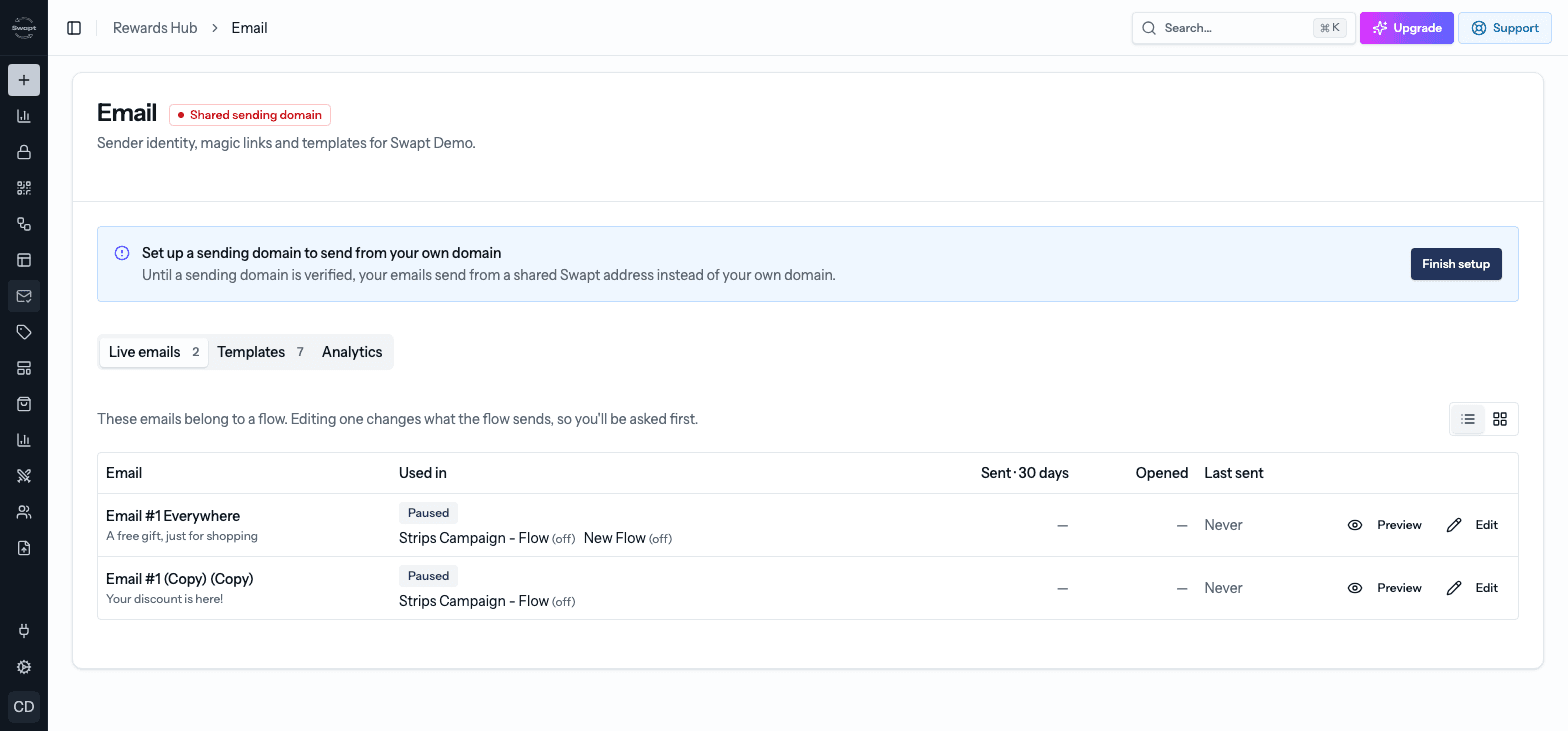
The Email page is home for the emails Swapt sends for you — what's live in your flows, the templates you build from, and how they're performing. Find it under Rewards Hub → Email.
An email only goes out when a flow sends it with a Send Email step (or when you send it as a broadcast).
Your sending domain
At the top of the page, a badge shows where your emails send from:
- Sending from your domain — you're all set.
- Shared sending domain — your domain isn't verified yet, so emails go out from a shared Swapt address instead of your own.
- No sending domain — on some accounts, flow emails aren't sent at all until a domain is verified. Magic links and Vault emails still go out.
Until your domain is verified, a banner shows your progress. Click Finish setup (or the badge) to see the DNS records to add at your domain provider. See Settings for managing domains.
The three tabs
Every email a flow is currently sending, with Used in (which flows) and Last sent. Click Preview to see an email, or Edit to change it.
Every design in your library, plus ready-made Swapt templates marked Swapt.
- Click New template to start from one of your designs or a Swapt template — you always get your own copy to edit. Or start blank.
- Click Use template on a Swapt template to copy it.
- Use the ⋯ menu to Rename, Duplicate, or Delete an email.
How your emails are doing: Sent, Delivered, Opened, Clicked, Bounced, and Complaints, a Daily Email Events chart, and a Recent Emails list you can search and filter by status. Click an email to see its full history.
Editing an email that's in use
Because a live email belongs to a flow, editing it changes what that flow sends. So when you click Edit on an email that's in use, Swapt asks first ("This email is in use" or "This email is shared") and lists the flows that use it. You can:
- Edit all emails — change it everywhere it's used.
- Unlink this email and edit independently — make a separate copy just for this edit, leaving the others alone.
- Cancel
Design an email
The email editor is a drag-and-drop builder, just like the landing page editor.
Open an email from the Email page, or add a Send Email step in a flow.
Drag blocks onto the email and click one to edit it. Your brand colors and fonts are applied for you.
Already have an email design? Click Import HTML to bring it in as editable blocks.
Click Send test to get a real copy in your inbox.
Click Save, then choose Save & Publish or Save as Draft.
Email blocks
The blocks panel groups blocks by what they do.
For content:
- Text, Heading, Image, Video
- Product Grid, List, Table, HTML
For layout:
- Section, Columns, Menu, Spacer, Divider
Under Actions:
- Button and Callout
- Countdown Timer — a live countdown to create urgency.
- Incentive Card
- Promotion — drop in a promo code or reward from your Promotions.
- Product Review Button and Judge.me Review Button — send customers straight to leave a review.
- QR Code
Under Footer:
- Signature, Social Links, and Footer
Every block also has Display Conditions, so you can show it only to certain customers — for example, people who clicked a review or discount button.
Swapt adds a footer with an unsubscribe link to your emails automatically, and never sends to customers who have unsubscribed.
Looking for customer replies? They live in the Inbox.