Library
Keep your brand kit and all your uploaded files in one place, ready to use across pages, emails, and QR codes.
The Library holds everything that makes Swapt look like your brand: your brand kit (colors, logo, fonts, voice) and your media (images, videos, and fonts you've uploaded). Find it at Library in the sidebar. It has two tabs, Brand and Media.
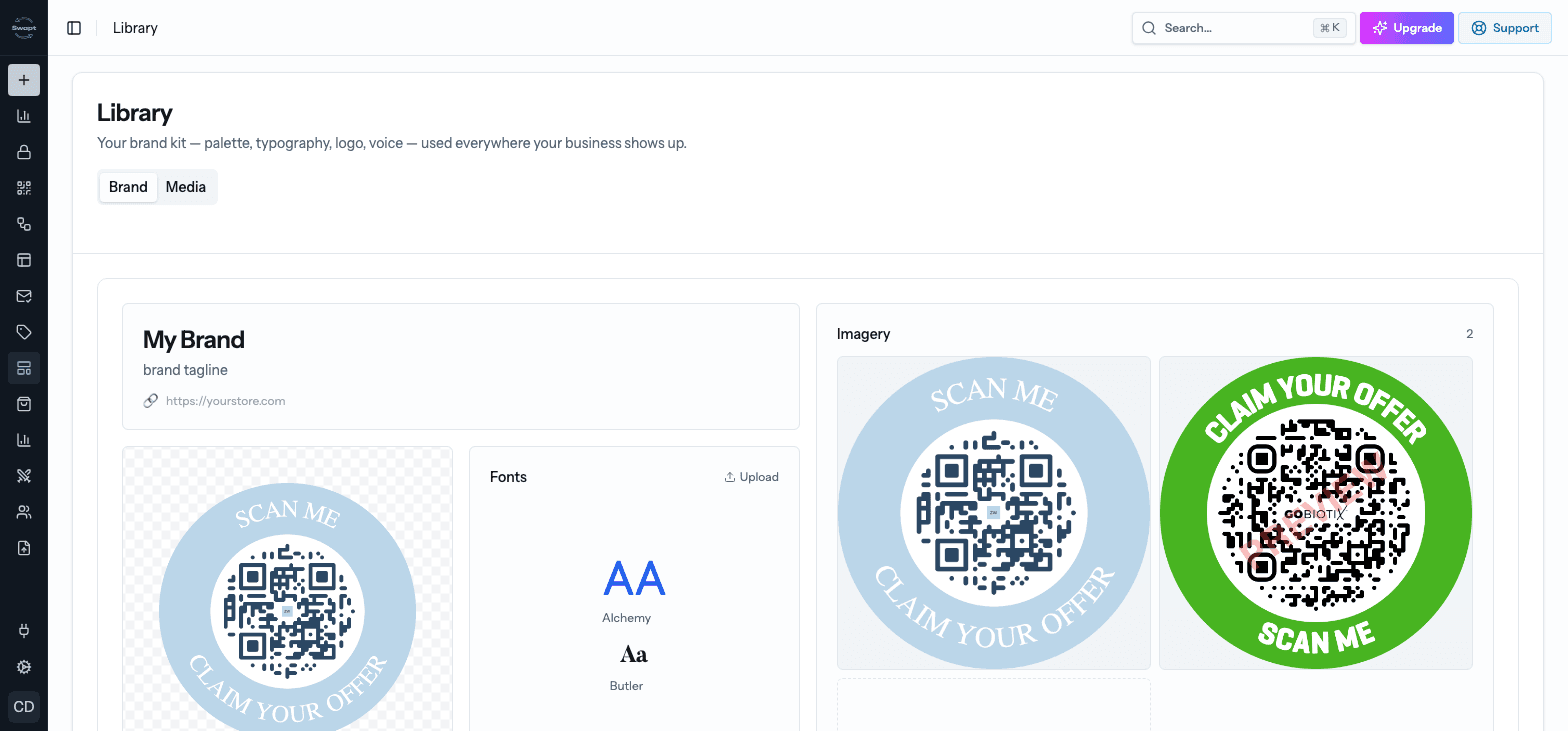
Brand and Media used to be two separate pages. Old links to either one now open the matching tab here.
Brand
Your brand kit is used everywhere your business shows up — your landing pages, emails, and more.
Set up your brand kit
Enter your store's web address (like https://yourstore.com) and click Analyze. Swapt pulls out your colors, fonts, logo, and voice for you — usually in under a minute.
Prefer to do it yourself? Click or upload your assets manually instead.
Review what Swapt found and adjust anything that isn't right. Your changes save automatically.
What's in your brand kit
- Brand name, an optional tagline, and your website.
- Logo — drop in your logo image.
- Fonts — a Primary font for headlines (this becomes your brand font) and a Secondary font for body text. Pick from Google Fonts, or click Upload to use your own — Upload from device or Choose from Media.
- Colors — Primary, Secondary, Accent, Neutral, and Text. Click a color to change it.
- Imagery — a mood board of brand photos. Upload images or pick them from your Media.
- Voice — a few words that describe how your brand sounds, like "playful" or "modern".
- Welcome message — a greeting such as "Hey
{first_name}". If a customer's name isn't on file, the name is left out gracefully.
Need to start over? Re-analyze runs a fresh extraction from your website (this replaces your current kit), and Reset brand kit clears it.
Media
The Media tab is your file library. Anything you upload here can be used in your landing pages, emails, and brand kit.
- Click Upload Files to add images, videos, and other files. You can drag and drop several at once.
- Filter by type — All, Images, Videos, or Fonts — search by name, and sort by newest, oldest, name, or size.
- Click a file to preview it. From there you can rename it, copy its link, Download it, or Delete it.
Fonts
Choose the Fonts filter to see your uploaded font families. Click Upload Font to add a new one — .ttf, .otf, .woff, and .woff2 files all work. Uploaded fonts show up in the font pickers in your brand kit and editors.