Your Vault
A branded, sign-in rewards page where customers track their progress and claim the rewards you set up in Promotions.
Beta
The Vault is your customer-facing rewards page, hosted at /{your-brand-slug}/vault. Customers sign in with a magic link and see their reward path — every live reward, how close they are to earning it, and a button to claim it once they have. It gives customers a reason to come back after their first scan.
You'll find it under Rewards Hub → Your Vault.
The Vault is a web page customers sign into. It's different from Wallet Passes, which are Apple and Google Wallet cards that live in the customer's phone wallet app.
How customers use the Vault
The customer opens your Vault link — or lands there from a flow with an Open Vault step — and sees the lock screen.
They enter their email and get a magic link in their inbox. No password needed.
If it's their first visit, they add their name. Then they're in.
Inside, they see your reward path, their progress, and any codes or rewards they've unlocked.
Where the rewards come from
The Vault doesn't have its own rewards — it shows your Promotions. You build a reward once in Promotions, and when it's Active it appears on every customer's reward path.
In the builder, open the Rewards section to manage this:
- Active promotions are the reward path itself, in the order customers meet them. Drag to reorder them.
- Paused and Draft promotions are listed underneath so you can pick up where you left off.
- New promotion opens the same promotion builder you use on the Promotions page.
- Manage promotions takes you to the full Promotions list.
Live promotions are locked so customers don't see a reward change under them. To edit one, pause it in Promotions first.
Previewing rewards before they go live
The phone preview also shows Paused and Draft rewards, dimmed and marked Not live, so you can check how they'll look. Customers only ever see the live ones.
Older rewards
If you created prizes before Promotions existed, they appear under Older rewards. Customers still see them on the reward path, but you can't edit them here. Click Move to Promotions, choose what kind of reward it is, and it becomes a regular promotion — same prize, same customer progress, same live status.
Progress and the submission pop-up
For Earned rewards (ones customers collect toward), the Vault tracks each customer's progress automatically:
- Each time a customer submits a form, the success page shows a submission pop-up telling them how close they are.
- When they complete a reward, they get a celebration pop-up. If they miss it, it plays again the next time they open the Vault.
- The reward card switches from "still collecting" to an unlocked state with a Claim button.
You write the words for each of these moments — the submission pop-up, the unlocked message, and what the card says after they claim — inside the promotion. See Promotions.
Build your Vault page
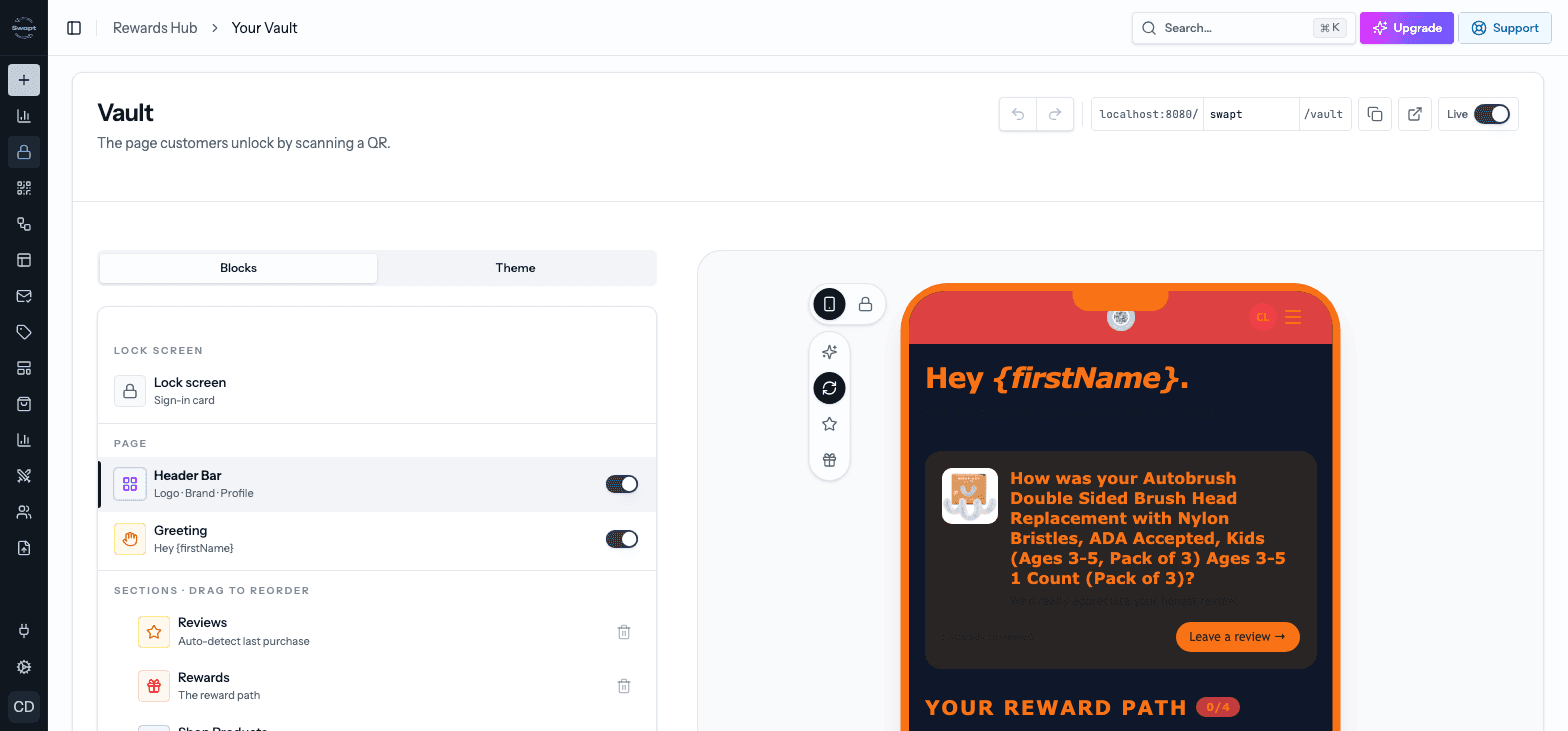
The builder has a list of sections on the left and a live phone preview on the right. Changes save automatically.
Turn sections on and off, and click one to edit it. Sections are grouped into:
- Lock screen — the sign-in card, with its own background and logo.
- Page — the Header Bar and Greeting at the top.
- Sections — the middle of the page, which you can drag to reorder: Reviews, Rewards, Shop Products, Image, Scans-away banner, Trust stats, Testimonials, Shop CTA, Instagram, Share CTA, and Contact Us.
- Footer — logo, legal links, and credit line.
Removed a section by mistake? Add it back with Add section — nothing is permanently deleted.
Pick a template, set your fonts, and choose colors for the page background, cards, text and buttons, and accents.
Use the preview's customer switcher to see the page as a First-time customer, Returning customer, Customer with reviews, or a customer who has an Unlocked gift.
Publish your Vault
Choose your Vault's URL by entering a slug (for example your-brand). Swapt checks that it's available.
Switch Live on to publish. Use Copy link to share it, or open it in a new tab to check it.
If you change the URL later, click Republish to apply it. Switch Live off any time to take the Vault offline.
To send customers to the Vault from a scan, add an Open Vault step to your flow. Recognized customers go straight in; everyone else gets a magic link.