Promotions
Build the rewards customers get — free products, discount codes, and links — and decide whether they're instant or earned.
A promotion is a reward you set up once: what the customer gets, and how they get it. Active promotions show up on your customers' Vault reward path, and flows can hand them out too.
You'll find it under Rewards Hub → Promotions.
Beta
The Vault tab described below may not be switched on for your account yet. Without it, Promotions shows your promo-code campaigns and prizes in one list — see Promo codes and prizes.
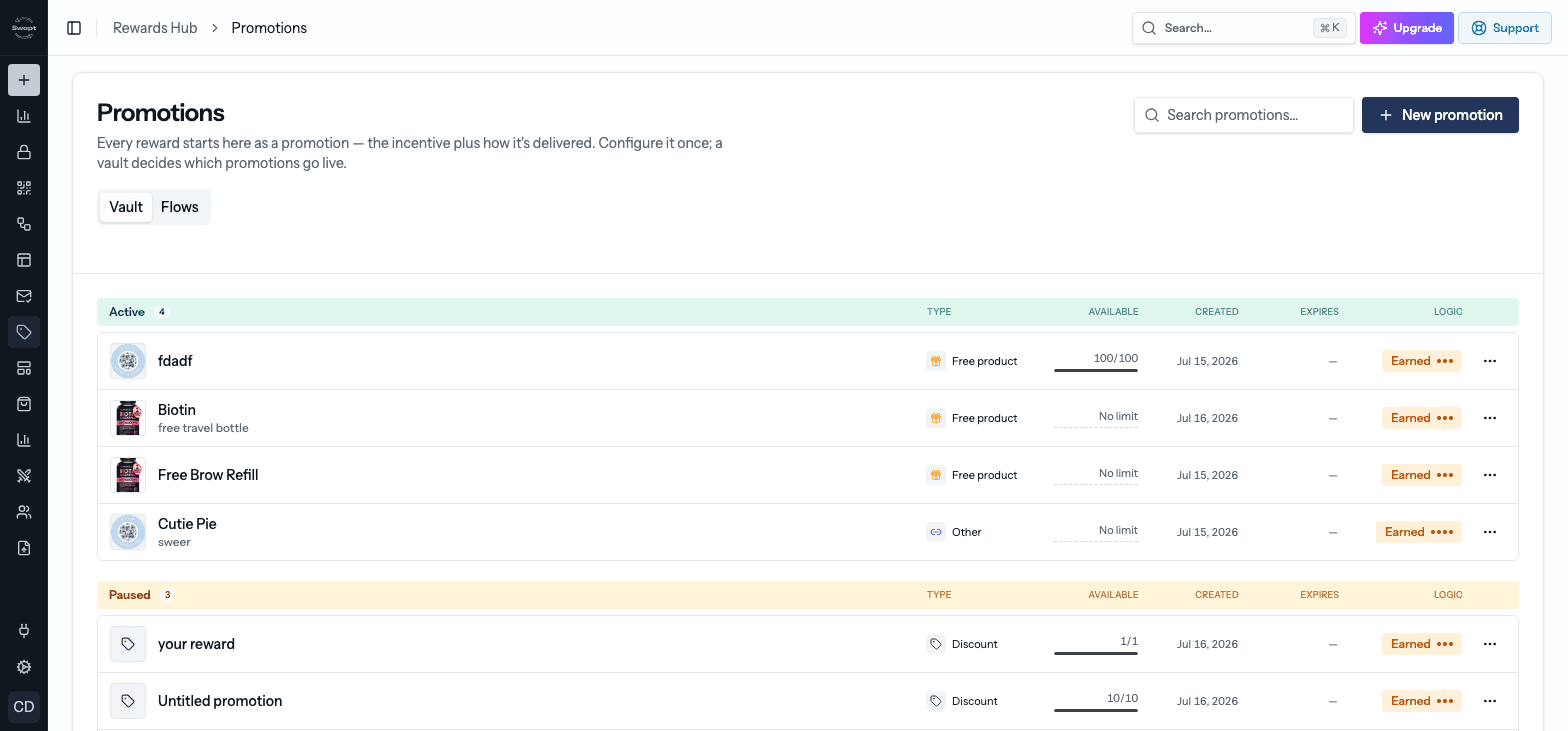
The Promotions list
The Vault tab lists every promotion, grouped by status: Active, Paused, Draft, and Retired (collapsed by default). Each row shows:
- Type — Free product, Discount, or Other.
- Available — how many codes or winner spots are left (or No limit). Rows say low or empty when supply is running out.
- Created and Expires dates. An expiry coming up soon is flagged soon.
- Logic — whether the reward is Instant or Earned.
If any live promotion has run out or is running low, a warning line appears at the top of the page so you can top it up before customers notice.
Create a promotion
Click New promotion and pick a type:
- Free product — give an item from your catalog. Winners claim it and you fulfil the order.
- Discount — hand out discount codes.
- Other — send a link, like a warranty registration, app access, or a download.
The offer — set up the reward itself (see below), then give it a Name. The name is what customers see. The optional Description is an internal note only your team sees.
How is it delivered? — choose Instant or Earned, and set any limits.
What the customer sees — add a Reward image, check the preview, and adjust the wording.
Click Create promotion. It's saved as a Draft until you activate it.
You can save a draft at any time, even if it's unfinished. When you try to activate it, anything still missing is highlighted in red and marked required to publish.
Reward types
Choose a Reward product from your catalog, or just type a product name if it isn't in your catalog. If you leave the name blank, Swapt names the reward after the product (for example "Free Travel-size bottle").
Discounts hand each winner a code. You set:
- Platform — Amazon. Shopify code handling is in beta and not yet available for new promotions.
- Discount type — Percentage or Fixed amount ($), plus the discount amount.
- Minimum spend (optional) — shown on the reward card, for example "on orders $30+". Your store enforces the actual minimum.
- How do the codes work? — one-time or multi-use (see below).
- Products this discount applies to (optional) — pick products from your catalog, search by storefront or tag, or upload a SKU list. The first product's listing opens from the Shop now button next to the revealed code.
- Expiration date — required. This is when the codes stop working, and customers see it next to their code.
Enter the Link URL customers will open when they claim the reward — a warranty form, a download, a gift link, and so on.
For discounts and links, you can also turn on Keep the claim link visible after claiming — useful for evergreen rewards customers may want to reach again.
One-time codes vs. a shared code
A pool of unique codes — each winner uses one up. Upload them as a CSV (one code per row; a header row like "Code" is skipped automatically), or click Edit as text to paste or tweak them.
Make sure you create these codes in your store first, and upload enough to cover your expected winners. You can add more codes later (pause the promotion first if it’s live).
One shared code that every winner sees, like SAVE20. Type it into Shared discount code.
Set it up as a multi-use code in your store so it keeps working after the first redemption.
If a one-time code pool runs out while a promotion is live, customers who unlock it won't get a code, and you'll be notified. Keep an eye on the Available column.
Instant vs. Earned
- Instant — the reward is available to every customer the moment they open the Vault.
- Earned — customers unlock it by meeting rules you set. Unlock when the customer meets Any or All of:
- Based on number of purchases — unlock after a set number of QR code submissions.
- Based on what they've bought — they must buy any or all of the products you pick.
An Earned promotion needs at least one unlock rule turned on before you can activate it.
Distribution limits
- Allow a customer to receive this multiple times — off by default, so each customer can win once.
- Limit how many customers can win this — cap the total number of winners across everyone. Switch it off for unlimited winners.
Under Advanced, you'll also find Piece reveal order, Difficulty, a Daily winner cap, and a Cooldown between wins.
What the customer sees
Upload a Reward image (PNG or JPG) — it's required. Then use the Preview to see the reward in three views: the Submission pop-up, the Reward Card Preview, and the Reward Close-Up. For Earned rewards, step through the numbers beside the phone to see each stage of progress.
The wording is written for you from your setup. Edit it for whichever state you're previewing:
- Submission pop-up — shown the moment the customer submits a form.
- While they're collecting — shown in the Vault while they're still earning.
- Unlocked message — shown once they've earned it, with the Claim button.
- After they claim it — the card's resting state once redeemed.
Go live, pause, and retire
Open a promotion's ⋯ menu to change its status:
- Activate — makes it live for all customers. If anything required is missing, the builder opens with those fields flagged so you can finish them.
- Pause to edit — takes a live promotion off customers' Vaults right away so you can edit it. Customers part-way through unlocking it may be confused, so pause with care. You can activate it again any time.
- Retire — ends the promotion permanently. It can't be given out or reactivated. If you might use it again, pause it instead.
- Delete — removes a promotion that isn't live, along with any customer progress attached to it. Drafts delete straight away; others ask you to confirm.
Live promotions are locked for editing — pause one first to change its offer.
Track results
Choose Analytics from a promotion's menu to see total participants, unlock rate, total unlocks, and — for discounts — how many codes are distributed and still available, plus a list of customers and their codes. Use Download CSV to export it.
Promo codes and prizes (Flows tab)
The Flows tab holds promo-code campaigns and prizes built before Promotions, which you hand out with the Promotion step in a flow. If the Vault tab isn't switched on for your account, this is what the Promotions page shows.
From here you can:
- Create Promotion → Promo Codes to set up a discount code campaign (including Shopify discounts and Amazon promotions), or → Prizes to create a prize customers collect in pieces.
- Award prize pieces through a flow, and use Mark Prize Claimed once a prize has been fulfilled.
- Open analytics for promo codes and prizes. Switch to Shopify discounts to see usage trends over time and usage rates by campaign for your Shopify codes.
Promo Codes asks you to pick one of two kinds:
- Normal Codes — upload codes you've already created elsewhere, such as an Amazon percentage-off or BOGO promotion. Leave One-time use per customer on so each customer only gets one code, and use the optional Product Integration card to link the Amazon product customers should buy.
- Shopify Discount — Swapt creates the codes in your Shopify store. Choose Amount off products, Amount off order, Buy X get Y, or Free shipping, then set the Number of Codes, Usage Limit per Code, and an optional prefix or suffix. You can also set a Minimum Order Amount and limit the discount to one-time purchases or subscription orders.
Both need a Start Date and End Date.
To bring an older prize into the Vault tab, choose Move to Vault tab from its menu and pick what kind of reward it is. Its customer progress comes with it.