Storefronts
Sync your Amazon and Shopify products, enrich them for your rewards hub, track their performance, and benchmark competitors.
Storefronts is where your product catalog lives. Connect your Amazon and Shopify stores, and Swapt pulls in your products so you can attach them to campaigns, feature them on landing pages and in the Vault, and use them in Promotions.
It has three pages in the sidebar: My Products, Performance, and Competitors.
My Products
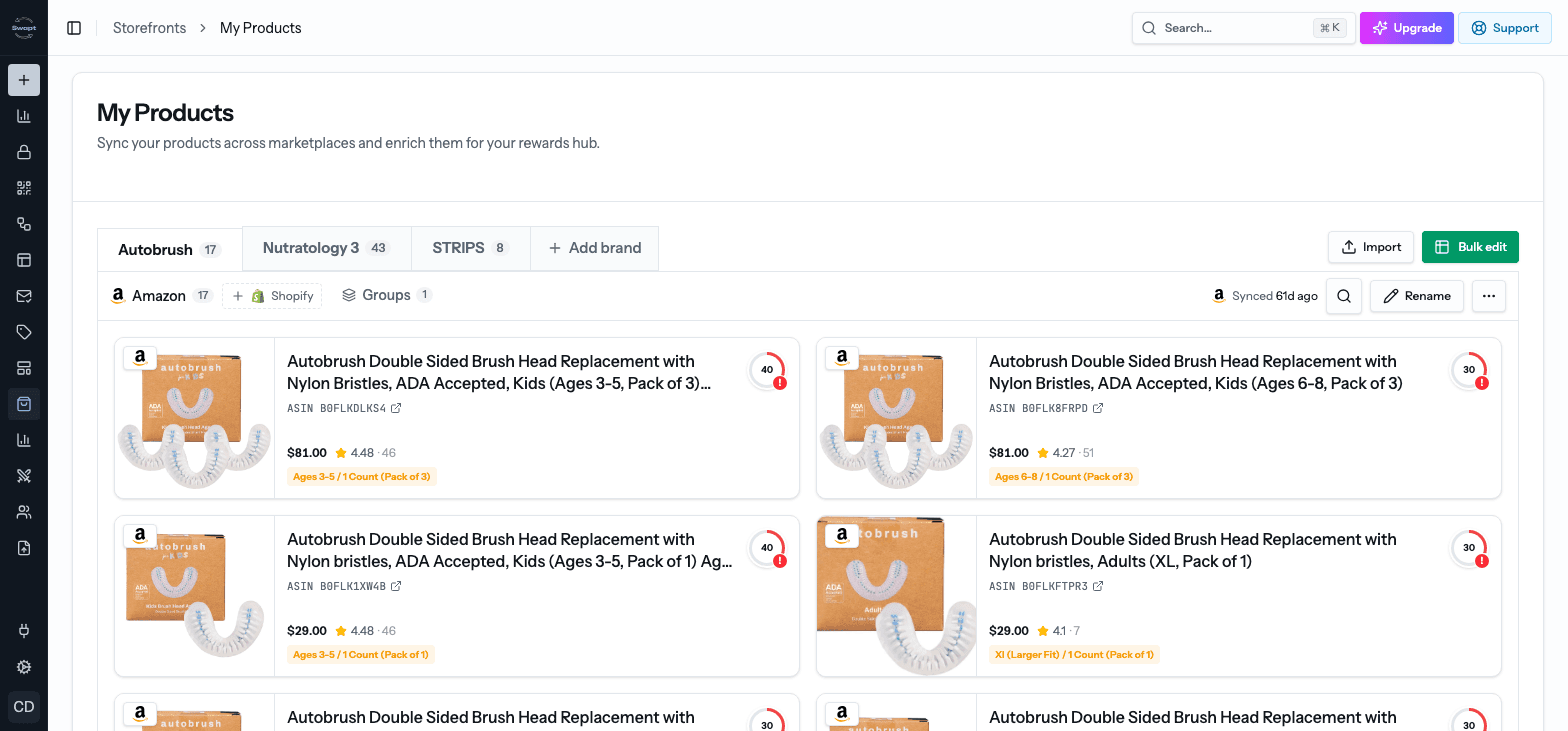
My Products shows your catalog organized by brand. Each brand has its own tab across the top, and under it a tab for each marketplace connected to that brand (Amazon, Shopify), plus a Groups tab.
A line on the right shows when each store last synced. Products that are drafts, archived, or switched off in your store are hidden by default — click the unavailable hidden toggle to show them.
Add a store
Click Add brand next to your brand tabs (or Add Store if you don't have any yet).
For Amazon, enter your Seller Storefront URL or Seller ID and click Fetch Products, or switch to Enter ASINs and paste product ASINs. Pick the products you want, give the store a name, and create it.
For Shopify, connect your store from Integrations — it then appears here automatically.
Already have a brand on one marketplace? Click the + Amazon or + Shopify button beside the marketplace tab to add the other one to the same brand. See Connect your store for more detail.
Import products by ASIN or SKU
Click Import to add products in bulk. Paste identifiers or click Upload CSV — ASINs for Amazon stores, SKUs or product IDs for Shopify stores — then choose the store under Import into. You can import up to 1,000 at a time.
To set a nickname as you import, add it after a comma, for example B01ABC1234,Red Bottle. A spreadsheet with a nickname column works too.
Edit a product
Click any product to open Edit product. Here you can:
- Give it a Nickname — the friendly name your customers see across Swapt, instead of the long marketplace Listing name.
- Add Tags and put it in a Product group.
- Set Warranty (months) and Reorder (days), and add a User manual or Video manual.
- Choose Cross sells to recommend alongside it.
- Add an Attribution link and marketplace Badges. The attribution link is where shoppers land when they tap this product in a Shop Now or Cross-Sell Carousel block, or in your Vault's Shop Products section — for example, an Amazon Attribution tag. It must start with
http://orhttps://. Without one, Swapt links to the product's regular page. See Measuring Amazon sales from QR scans.
Changes save automatically.
Product groups
The Groups tab collects related products — for example, the sizes or scents of one product — so they're analyzed together. Create a group, add products to it, and rename or delete it any time. Amazon variant families are grouped for you.
Rename, merge, and manage storefronts
On the right of the marketplace tabs:
- Rename storefront changes the brand name on the tab.
- The ⋯ menu has:
- Import ASINs / Import products — the same bulk import as above.
- Merge storefronts — combine another brand tab into this one. Its stores, products, and details move under this brand. Handy if the same brand was added twice.
- Export ratings CSV, Export reviews CSV, and Export nicknames CSV for each store.
- Delete storefront — removes the store and everything attached to it, including review history. This can't be undone.
Bulk edit
Click Bulk edit to work on your catalog as a spreadsheet. Edits save automatically. Search highlights matching cells, and the brand tabs choose which brand you're editing.
Select rows to act on many products at once:
- Set a field and click Apply to the selected products.
- Activate or Deactivate them.
- Move to another storefront.
Performance
Performance shows how your products are doing, with separate Amazon and Shopify tabs and a Date range picker.
- Amazon — ratings and reviews from the marketplace (Rating, Reviews, Review growth) alongside what happened on your Swapt pages (Review clicks, Swapt rating, Shop product clicks, Form submits), plus an overall Health score. Products are grouped into families — click one for its detailed breakdown, including Daily review growth and Rating history charts.
- Shopify — how customers interacted with your products on Swapt pages: clicks, shop clicks, and form submits. Expand a family to see its variants.
Competitors
Competitors compares your products against competitor products on how fast they're gaining reviews and ratings.
Click Add competitor, then choose your products — select every product you want to compare against the same competitors.
Paste the Competitor ASINs (up to 50 at once), or pick products from your catalog.
Swapt tracks each product's rating, rating velocity, recent quality, and trend, and gives it a grade. New competitors show collecting… until there's enough data.
Click Show review breakdown for more detail, or Delete analysis to remove one.